AI Assistant
Describe what a workflow should do – the assistant composes it from the tasks in your toolbox and inserts it inline into the workflow you have open.
What is the AI Assistant?
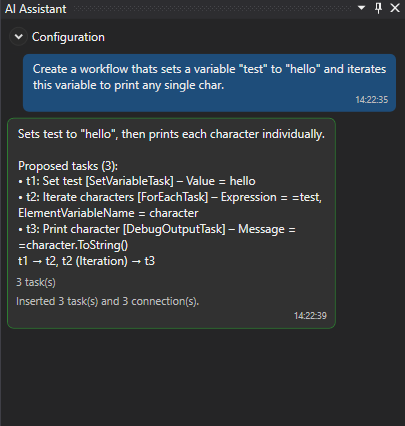
The AI Assistant is a dockable panel in the desktop application that connects the designer to a large language model – a local Ollama instance or OpenAI / ChatGPT (and any OpenAI compatible endpoint). You type a requirement in natural language, e.g. “Read all CSV files from the inbox folder, send each one as an e-mail attachment and move it to an archive folder afterwards”, and the assistant answers with a workflow plan: a set of tasks with their properties and the connections between them.
The plan is not an opaque text answer. It is a strictly structured proposal that the designer validates against the tasks currently available in the toolbox – built-in tasks, tasks from referenced NuGet packages and your own custom tasks alike – and then materialises as real nodes on the canvas. Nothing is executed and nothing is saved until you decide to.
How It Works
- When you send a prompt, the designer builds a task catalog from the toolbox: full type name, display name, description, category, outputs (e.g. Then / Else, Iteration / Conclusion), input/output definitions and every editable property with its type and allowed values.
- Optionally the current workflow is summarised as well – existing nodes, their identifiers, free outputs and connections – so the model can append to an existing branch instead of starting from scratch.
- Catalog, workflow summary and a fixed set of composition rules (expression syntax, scope semantics, single input per task, how to merge branches) are sent as the system prompt together with your chat history.
- The model has to reply with a single JSON plan. Markdown fences or surrounding prose are tolerated and stripped.
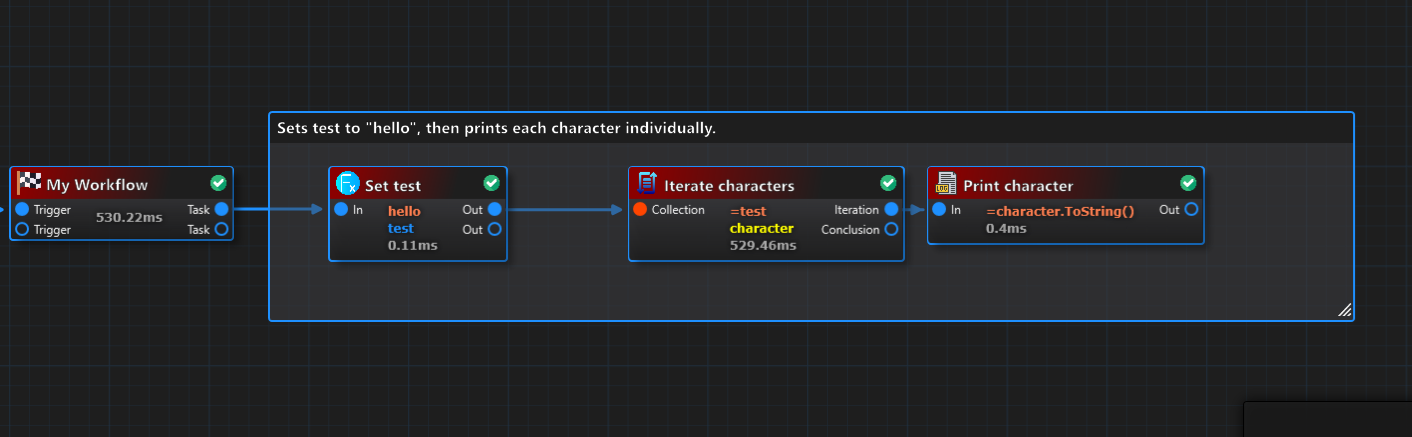
- The plan applier resolves every task type against the catalog, creates the task instances through the regular node factory, assigns the proposed property values (with type conversion for enums, numbers, booleans and TimeSpans), wires the connections and lays the new nodes out left-to-right.
- Problems – unknown task types, unknown properties, invalid connections – are reported as warnings under the chat entry and fed back into the conversation so the next request can correct them.
Opening and Configuring the Panel
Open the panel via Panels → AI Assistant in the ribbon. The Configuration expander at the top is opened automatically until a provider is fully configured.
| Setting | Description |
|---|---|
| Provider | Ollama for local models or OpenAi for ChatGPT and OpenAI compatible APIs. |
| Endpoint | Base URL of the server, e.g. http://localhost:11434 (Ollama) or https://api.openai.com/v1. Any OpenAI compatible gateway (Azure OpenAI proxies, LM Studio, vLLM, …) works as long as it serves /chat/completions and /models. |
| API key | OpenAI only. Stored encrypted for the current Windows user (DPAPI) – it never leaves your machine in plain text. |
| Model | Type a model name or press Load to query the endpoint. For OpenAI the list is filtered to current chat capable models; Show all models reveals legacy snapshots, embedding, audio and image models as well. |
| Temperature | Sampling temperature (0 = deterministic). Uncheck it to omit the parameter for models that only accept their default. Reasoning models (gpt-5*, o1, o3, o4) never receive it; the assistant retries automatically if an endpoint rejects the value. |
| Reasoning effort | Only shown for reasoning models: low, medium or high (reasoning_effort). Empty uses the provider default. |
| Max. output tokens | Upper bound for the generated answer (max_completion_tokens for OpenAI, num_predict for Ollama). 0 = provider default. |
| Timeout (s) | Per-request timeout. Local models on modest hardware may need a higher value. |
| Send current workflow as context | Includes the summary of the loaded workflow in every request so the model can connect new tasks to existing nodes. |
| Insert generated tasks automatically | Applies a plan as soon as it arrives instead of waiting for Insert into workflow. |
| Group inserted tasks | Wraps the inserted tasks in a named group node when more than one task is created. |
Press Save to persist the configuration. It is stored per user in %LOCALAPPDATA%\ultimate networX\AURORA Workflows\ai\assistant.json.
ollama pull llama3.1 (or any instruction-tuned model that handles JSON well, e.g. qwen2.5, mistral-nemo), keep the default endpoint and press Load. No API key or internet connection required.Working with the Chat
- Enter sends the prompt, Shift+Enter inserts a line break. Cancel aborts a running request, Clear starts a new conversation.
- Each assistant reply lists the proposed tasks with their key properties and the connections as a readable summary. Replies that contain tasks show an Insert into workflow button and the task count.
- After insertion the entry shows how many tasks and connections were created plus any warnings. The conversation keeps its history, so you can iterate: “use a Decision instead of the Loop”, “add error handling around the mail task”, “rename the variable to
invoiceFiles”. - If the model needs more information it can ask a clarifying question instead of returning tasks; simply answer in the prompt box.
- Select a node before sending a prompt to tell the assistant where the new flow should be attached. Without a selection new flows are connected to the Start node.
The plan format understood by the applier looks like this:
{
  "summary": "Reads CSV files from the inbox, mails each one and deletes it afterwards.",
  "entry": "t1",
  "tasks": [
    { "id": "t1", "type": "Aurora.Workflows.Tasks.GetFileListTask", "name": "Find CSV files",
      "outputVariable": "csvFiles",
      "properties": { "DirectoryPath": "C:\\Inbox", "Pattern": "*.csv", "SearchOption": "TopDirectoryOnly" } },
    { "id": "t2", "type": "Aurora.Workflows.Tasks.ForEachTask", "name": "For each file",
      "inputVariable": "csvFiles",
      "properties": { "ElementVariableName": "file" } },
    { "id": "t3", "type": "Aurora.Workflows.Tasks.SendMailTask", "name": "Send file",
      "properties": { "Host": "smtp.example.com", "Sender": "robot@example.com", "Recipient": "accounting@example.com",
                      "Subject": "=\"CSV import \" + Path.GetFileName(file)", "Body": "=File.ReadAllText(file)" } },
    { "id": "t4", "type": "Aurora.Workflows.Tasks.DeleteFileTask", "name": "Delete file",
      "properties": { "FilePath": "=file" } }
  ],
  "connections": [
    { "from": "t1", "to": "t2" },
    { "from": "t2", "output": "Iteration", "to": "t3" },
    { "from": "t3", "to": "t4" }
  ]
}
Property values follow the normal designer semantics: plain text is used literally, a value starting with = is a C# expression evaluated at runtime, and variables declared via outputVariable can be referenced by name inside expressions – exactly like in the Data Context and the Properties panel.
Composition Rules the Assistant Follows
| Rule | Why |
|---|---|
| Only task types and property names from the catalog | The plan is validated against what is really loaded; hallucinated tasks are rejected and reported instead of silently creating broken nodes. |
| One incoming connection per task | Mirrors the engine model. Several branches are joined with a Merge task. |
| Scope children connect to the first output | ForEach, Loop, Scope and TryCatch expose Iteration/Scope/Try for the inner branch and Conclusion to continue afterwards. Decision uses Then / Else. |
| Existing nodes are referenced, never recreated | With workflow context enabled the model can use existing:<identifier> and start as connection endpoints to extend the loaded graph. |
| Minimal, named, configured | Short descriptive display names and the properties required for a task to work – you refine the rest in the Properties panel. |
Privacy and Cost
- With Ollama everything stays on your machine or in your network. No data is sent to a third party.
- With OpenAI the task catalog, the workflow summary (when enabled) and your prompts are sent to the configured endpoint. Property values of existing nodes are included in the summary – disable Send current workflow as context if the open workflow contains sensitive literals.
- The task catalog can be sizeable when many packages are loaded; every request includes it in full. Use Max. output tokens and a smaller model for quick iterations, a stronger model for the final composition.
- The API key is protected with Windows DPAPI for the current user account. Copying
assistant.jsonto another machine or user will not expose it – it simply has to be entered again.
Troubleshooting
| Symptom | Resolution |
|---|---|
| “Please configure the AI provider first.” | Endpoint, model and (for OpenAI) the API key must be filled. Press Load to verify the endpoint responds, then Save. |
| 400 Unsupported value: 'temperature' | The model only supports its default temperature. The assistant retries without it automatically; untick Temperature to avoid the extra round-trip. |
| 404 The model … has been deprecated | Press Load and pick a current model. Deprecated snapshots are hidden unless Show all models is enabled. |
| Reply received but no tasks | The model answered in prose. Ask again more concretely, lower the temperature or switch to a model with better JSON compliance. The raw reply is shown in the chat. |
| “Unknown task type …” warnings | The requested capability is not in your toolbox. Add the package in the Package Editor or implement a custom task – the assistant picks it up with the next request. |
| Timeouts with local models | Raise Timeout (s), choose a smaller model or limit Max. output tokens. |