Workflow Hosting
Run published workflows on a SQL Server backed hosting engine – scheduled, monitored and controlled directly from the designer.
What is Workflow Hosting?
The Hosting Engine is a headless .NET 10 service that executes compiled .awfc workflows stored in a SQL Server database. Instead of copying bundles to a machine and starting the CLI Runner by hand, you publish a workflow straight into the hosting database. One or more hosting nodes pick it up, schedule it, run it, record its status and restart it when it fails.
Hosting complements the existing execution options:
| Option | Best for |
|---|---|
| Designer (F5) | Building and debugging a workflow interactively. |
| CLI Runner | Running a single .awfc from a shell, a scheduled task or a CI pipeline. |
| Hosting Engine | Operating many workflows continuously on one or more servers with central status, scheduling and retries. |
How It Works
- The designer compiles the open workflow into an
.awfccontainer and stores it – together with its execution options – in the hosting database (publish target Hosting Database). - Every running hosting node registers itself in the database and reports a health check and a performance score periodically.
- The Scheduler (executed by the elected master node) assigns workflows with status
Newto a compatible node. - The Orchestrator on that node starts a dedicated Executor process per workflow (
--executeWorkflow <id>). A global mutex guarantees that a workflow id never runs twice on the same machine. - The executor loads the container, restores NuGet packages into
.packages/, runs the workflow and writes task/trigger state plus health checks back to the database. - After completion the status becomes
Stopped(orError); repeating and cron workflows are re-queued automatically.
Schedule Behaviors
| Behavior | Description |
|---|---|
| Single (default) | Runs once. Afterwards the workflow stays Stopped until you start it again. |
| Multiple | May run on several nodes at the same time. |
| Repeating | Re-queued immediately after every run – suited for long-running workflows with their own triggers. |
| Cron | Started according to a cron expression, e.g. 0 */5 * * * *. |
Tags and Load Balancing
Each node advertises tags that describe its capabilities (for example windows;gpu;reporting). Initial tags are configured in appsettings.json (SchedulerOptions:CustomTags); afterwards the value in the database is authoritative and can be changed at runtime.
When publishing you can require tags for a workflow. The scheduler applies these rules:
- Workflows without tags are scheduled by the master node.
- Workflows with tags are scheduled by the master as long as it provides all of them.
- If the master is incompatible, the compatible node with the best performance score takes over.
- If no active node is compatible, the workflow is not scheduled and a warning is logged.
Workflow Status Values
| Status | Meaning |
|---|---|
New | Waiting to be scheduled. |
Scheduling / Scheduled | The scheduler is assigning the workflow to a node. |
Orchestrating / Orchestrated | The node is starting the executor process. |
Started / Running | The workflow is executing. |
Stopped | Finished or stopped on request. |
Paused | Stored but excluded from scheduling. |
Error / SchedulingError | Failed; retried automatically while Retries < Max retries. |
LoadError | The executor could not load the container within the configured load timeout (missing assembly or package, blocked resolver). The process exits and releases the workflow; fix the container and update it from the designer. |
Upgrading / UpgradeError | The container is being replaced by a newer version from the designer. |
The Workflow Hosting Panel
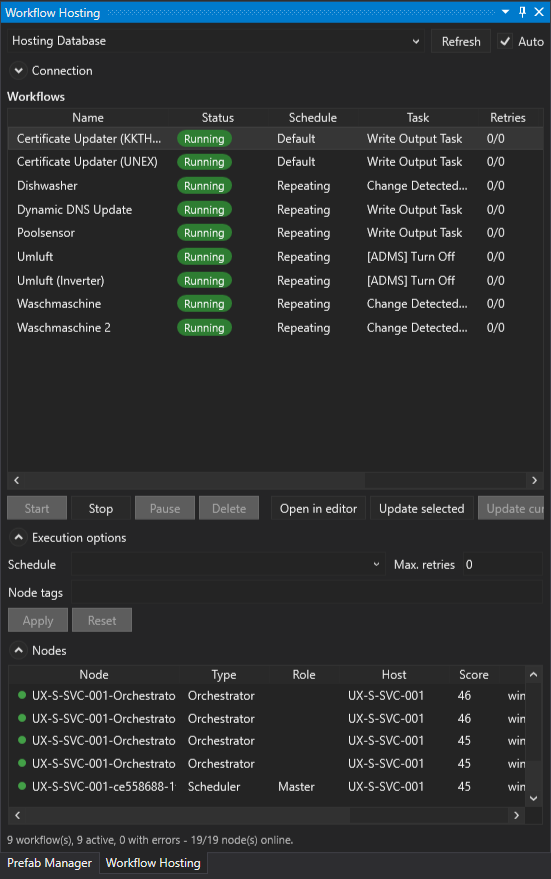
Open the panel via Panels → Workflow Hosting in the ribbon. It connects to a hosting engine (any publish target that supports host control) and shows:
- Connection – the selected host and its connection options (server, database, authentication). Settings are remembered between sessions; passwords are not.
- Workflows – name, status, schedule, current task, retries, tags and modification date of every hosted workflow. The details show orchestrator, executor, last health check, execution times and the last error.
- Execution options – schedule, cron expression, max. retries and node tags of the selected workflow. Edit them in place and click Apply; the container content is not touched and a running workflow picks the new values up on its next run. Reset discards the edits.
- Nodes – all registered hosting nodes with type, role (master/backup), host name, performance score, tags and last-seen time.
| Action | Effect |
|---|---|
| Start | Queue the selected workflow for execution (from paused / stopped / error). |
| Stop | Request the running workflow to stop. |
| Pause | Take the workflow out of the scheduler queue without deleting it. |
| Delete | Remove the workflow from the host. |
| Open in editor | Download the selected hosted workflow (or double-click it) and open it in the editor. The workflow currently open is replaced after confirmation. |
| Update selected | Replace the selected hosted workflow with the workflow open in the editor. Execution options are kept; a running workflow is stopped, updated and restarted. You are warned if the workflow ids differ. |
| Update current | Update the hosted counterpart of the workflow open in the editor (matched by content workflow id). |
| Queue after update | Queue an idle workflow right after the update; otherwise it is stored paused. Running workflows are always restarted. |
| Apply / Reset | Save the edited execution options to the host or discard the edits. |
| Auto | Refresh the lists every 5 seconds (enabled by default). |
Editing Hosted Workflows (Round Trip)
Published containers carry the complete designer graph, so a hosted workflow can be edited without its original .awf file. After Open in editor the window title shows [Host: Workflow] instead of a file name and the editor remembers where the content came from.
- Select the hosted workflow and click Open in editor (or double-click it).
- Edit tasks, connections and packages as usual. Test it with F5 in the designer if needed.
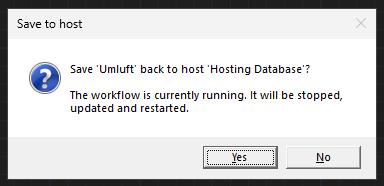
- Press Ctrl+S. Instead of writing a file the editor asks Save to host: the hosted content is replaced; a running workflow is stopped, updated and restarted. Execution options stay unchanged and embedded assemblies/packages that are not available locally are preserved (patch).
- Use File → Save As to write the content to an
.awfor.awfcfile instead. Saving to a file detaches the editor content from the host; use Update selected later to push it again.
Publishing to a Host
In the Publish panel choose the Hosting Database target. Its options are grouped:
| Group | Option | Description |
|---|---|---|
| Database | Server | SQL Server instance, e.g. myserver\instance,1433. |
| Database | Database name (default svc.auroraworkflows). | |
| Authentication | Windows or SQL Server. | |
| User name / Password | SQL credentials. The password is not stored between sessions. | |
| Trust server certificate | Accept the server certificate without validation (encrypted connection). | |
| Execution | Schedule | Single, Multiple, Repeating or Cron (see above). |
| Cron expression | Only used for schedule Cron. | |
| Max retries | Number of automatic re-runs after an error (0 = none). | |
| Tags | Required node tags, separated by ; or ,. Leave empty for any node. | |
| Behavior | Activate | Publish with status New so the scheduler starts it right away; otherwise it is stored as Paused. |
| Overwrite | Replace a workflow with the same id and reset its runtime state. |
Use Test to verify the connection before publishing. Since hosting nodes restore NuGet packages themselves, you usually only need to embed assemblies that are not available as packages.
Running a Hosting Node
The hosting node is the console application Aurora.Workflows.Hosting.Cli (.NET 10). It is configured through appsettings.json:
{
  "ConnectionStrings": {
    "Database": "Server=myserver;Database=svc.auroraworkflows;Trusted_Connection=True;TrustServerCertificate=True"
  },
  "SqlServerOptions": { },
  "SchedulerOptions": {
    "CustomTags": "windows;gpu"
  },
  "ResilienceOptions": {
    "MaxDatabaseConnectionRetries": 5,
    "DatabaseRetryDelaySeconds": 5,
    "WorkflowLoadTimeoutSeconds": 300
  },
  "Serilog": { ... }
}| Option | Description |
|---|---|
MaxDatabaseConnectionRetries | Consecutive failed database round trips a component tolerates before it shuts itself down. A successful round trip resets the counter, so short outages are survived. |
DatabaseRetryDelaySeconds | Delay between two connection attempts after a failed round trip. |
WorkflowLoadTimeoutSeconds | Maximum time an executor waits for the container to load (assembly resolution, NuGet restore). Exceeding it sets the workflow to LoadError and terminates the executor instead of leaving a zombie process. |
Start the node with Aurora.Workflows.Hosting.Cli.exe. On first start the database schema is created/migrated automatically. The node then acts as scheduler, orchestrator and executor host in one process and spawns a separate executor process per workflow. Logs are written to the console and to log/log.log with daily rolling.
Running the Node as a Service
For production use the node should start automatically and survive reboots. The hosting node is a plain .NET console application without a UI, so it runs on Windows and Linux alike – as a Windows service, as a Docker container or under any other process supervisor.
Windows Service with NSSM
NSSM (the Non-Sucking Service Manager) wraps any executable as a Windows service and restarts it when it exits. Publish the node first, then register it:
dotnet publish Aurora.Workflows.Hosting.Cli -c Release -r win-x64 --self-contained false -o C:\AuroraHosting

nssm install AuroraWorkflowsHost "C:\AuroraHosting\Aurora.Workflows.Hosting.Cli.exe"
nssm set AuroraWorkflowsHost AppDirectory "C:\AuroraHosting"
nssm set AuroraWorkflowsHost DisplayName "Aurora Workflows Hosting Node"
nssm set AuroraWorkflowsHost Description "Schedules and executes published Aurora workflows"
nssm set AuroraWorkflowsHost Start SERVICE_AUTO_START
nssm set AuroraWorkflowsHost AppExit Default Restart
nssm set AuroraWorkflowsHost AppRestartDelay 5000
nssm set AuroraWorkflowsHost AppStdout "C:\AuroraHosting\log\service.out.log"
nssm set AuroraWorkflowsHost AppStderr "C:\AuroraHosting\log\service.err.log"

nssm start AuroraWorkflowsHost- AppDirectory must point to the publish folder so
appsettings.json, the.packagescache and thelogfolder are resolved relative to the node. - Use
nssm set AuroraWorkflowsHost ObjectName "DOMAIN\svc-aurora" "password"to run under a dedicated account – required for Windows authentication against SQL Server. Grant that account write access to the publish folder. - Settings can also be supplied as environment variables instead of editing
appsettings.json, e.g.nssm set AuroraWorkflowsHost AppEnvironmentExtra ConnectionStrings__Database="Server=…" SchedulerOptions__CustomTags="windows;gpu". - Tasks that interact with the desktop (screen capture, keystrokes, Selenium with a visible browser) do not work in session 0. Run such workflows on a node started interactively or use tags to keep them away from service nodes.
nssm edit AuroraWorkflowsHostopens a GUI for the same options;nssm remove AuroraWorkflowsHost confirmuninstalls the service.
Docker Container (Linux or Windows)
The project ships a multi-stage Dockerfile in Aurora.Workflows.Hosting.Cli based on the official mcr.microsoft.com/dotnet/runtime:10.0 image. Build it from the repository root so the shared Directory.Build.props / Directory.Packages.props are included:
docker build -f Aurora.Workflows.Hosting.Cli/Dockerfile -t aurora-hosting:latest .Run a node and pass the configuration as environment variables (double underscores map to configuration sections):
docker run -d --name aurora-node-1 --restart unless-stopped \
  -e ConnectionStrings__Database="Server=sql.example.local,1433;Database=svc.auroraworkflows;User Id=aurora;Password=***;TrustServerCertificate=True" \
  -e SchedulerOptions__CustomTags="linux;docker" \
  -v aurora-packages:/app/.packages \
  -v aurora-logs:/app/log \
  aurora-hosting:latest
Or with docker compose, including a SQL Server for a self-contained test environment:
services:
  sql:
    image: mcr.microsoft.com/mssql/server:2022-latest
    environment:
      ACCEPT_EULA: "Y"
      MSSQL_SA_PASSWORD: "Your_strong_Passw0rd"
    ports: ["1433:1433"]
    volumes: ["sql-data:/var/opt/mssql"]

  node:
    build:
      context: .
      dockerfile: Aurora.Workflows.Hosting.Cli/Dockerfile
    depends_on: [sql]
    restart: unless-stopped
    environment:
      ConnectionStrings__Database: "Server=sql;Database=svc.auroraworkflows;User Id=sa;Password=Your_strong_Passw0rd;TrustServerCertificate=True"
      SchedulerOptions__CustomTags: "linux;docker"
    volumes:
      - aurora-packages:/app/.packages
      - aurora-logs:/app/log

volumes:
  sql-data:
  aurora-packages:
  aurora-logs:
Scale out with docker compose up -d --scale node=3 – every container registers as its own node against the same database.
- Cross-platform: the hosting engine, the core libraries and the general task packages are platform independent. Task packages that depend on Windows APIs (
Aurora.Workflows.Tasks.Windows, Hardware, parts of Selenium) only run on a Windows node – use tags (e.g.windows) when publishing such workflows so the scheduler never assigns them to a Linux container. - Windows containers: switch the base images to
mcr.microsoft.com/dotnet/runtime:10.0-windowsservercore-ltsc2022andmcr.microsoft.com/dotnet/sdk:10.0-windowsservercore-ltsc2022in the Dockerfile and build on a Windows Docker host. Alternatively set<DockerDefaultTargetOS>Windows</DockerDefaultTargetOS>in the project and let Visual Studio generate the image. - Persist volumes: mount
/app/.packagesso NuGet packages are not downloaded again after each container restart, and/app/logfor the Serilog files. - Publishing from the designer: the designer only needs network access to the SQL Server; the containers pick up the workflow on their own. Workflows from the designer are published with the Hosting Database target exactly as described above.
- Instead of NSSM or Docker you can also use
systemdon Linux: create a unit withExecStart=/usr/bin/dotnet /opt/aurora/Aurora.Workflows.Hosting.Cli.dll,WorkingDirectory=/opt/auroraandRestart=always.
Projects
| Assembly | Target | Description |
|---|---|---|
Aurora.Workflows.Hosting.Contracts | .NET 10 | Enums and command line parameters shared by hosting components |
Aurora.Workflows.Hosting.Core | .NET 10 | EF Core data model, Scheduler, Orchestrator, Executor and performance monitor services |
Aurora.Workflows.Hosting.Publisher | .NET 10 | Hosting Database publish target and host controller used by the designer |
Aurora.Workflows.Hosting.Cli | .NET 10 | Hosting node executable |